

By: Dr Tristan Jenkinson
Introduction
With apologies, apparently WordPress did not want to publish this properly the first time around, so having to put it up again. Sorry to anyone on the mailing list who received this twice, or if you have been having issues accessing the content. Hopefully it works this time!
So, week 3 was extended to two weeks, but sadly there was no Fortnite Challenge in sight – an opportunity for a terrible joke lost!
After “Android Week” in week 2, we move on to some iOS challenges.
Let’s dive in.
Those are Rookie Numbers

That username looks a little familiar… Back in week one, when I took a very “round the houses” approach to one of the iOS challenges, during my wander around I was looking at the information stored by the Roblox app which had been installed. Digging into one of the plists there, I found the below:
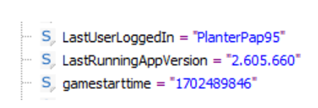
Unfortunately not quite the same username… so this isn’t the app that we are looking for.
Also in week one, I noted that Call of Duty (“CoD”) had been in use and there were some images from what appeared to be online CoD games. CoD does have a ranking function and in the mobile version, the rankings start with Rookie. CoD Mobile also has a reporting system where it will tell you what percentage of players you have beaten, the example below (from https://www.reddit.com/r/CallOfDutyMobile) shows that this user beat 93% of players:
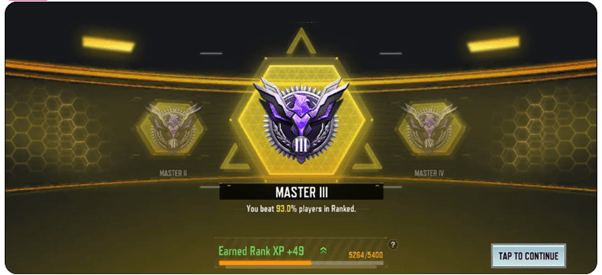
This ties up the title and the specifics for the challenge, so seems like it is most likely CoD data that we are looking for.
The question is then where this information is stored. It may be in a database somewhere, or we could be looking for a screenshot from the game… either taken knowingly, or, as this is an iPhone, in an App Snapshot. These snapshots are taken when a user changes apps, and the snapshot is then displayed as a user scrolls through the different apps. There is some great research on this artefact by (for example) @i_am_the_gia – https://gforce4n6.blogspot.com/2019/09/a-quick-look-into-ios-snapshots.html. They are stored as .ktx files, which are native to Apple systems… but not so easy to view elsewhere (though Yogesh Khatri has put together a Python script – http://www.swiftforensics.com/2020/07/ktx-to-png-in-python-for-ios-snapshots.html).
I started by looking at the details for the CoD Mobile app details:

We can see that the application has data storage within /private/var/mobile/Containers/Data/Application/3690AAA8-713A-482B-92F1-3F7D3BCC73E6. So I started taking a look there.
Within the Documents folder, there is a ChatCache folder, which sounded interesting. It contained a single file, which was a JSON file:

We can see from the “Name” entry that we have a matching username. Further evidence that we are on the right track.
Looking at the files contained within the relevant Container folder, I noticed a “screenshot.jpg” file… taking a look there…

We can see at the bottom of the screenshot that PlanterPapp beat 19.9% of users. This is indeed the flag that we were looking for.
Take Control

Given the title, and the capitalisation of TC, I wondered if this was initially a hint towards looking at the TCC database (the Transparency Consent and Control database). This database looks after the access that different applications have to the different systems on the device. For example, access to the camera, access to photos, or full disk access! This would fit with the idea of content being disabled…
But it doesn’t quite seem to work… the TCC database is works with each line containing an application, then the different area, then the authorisation… so it wouldn’t be an item that would be disabled on a specific line (which is what the question is looking for), it would be access to a particular service for a particular application. That didn’t really seem to fit, so I shelved that idea.
I then thought that it could well be related to the Control Centre… that would fit. I couldn’t find a specific application, so went into Axiom to have a look in the filesystem, and it was easy to find a location with some interesting data – /var/private/mobile/Library/ControlCentre. Within the folder was a plist file – ModuleConfiguration.
This wasn’t something that I had specifically looked at before, so did some quick Googling… turning up a Twitter post from none other than one of the Hexordia question setters… Kevin Pagano – https://twitter.com/KevinPagano3/status/1519331172198797314. Kevin was ReTweeting a post from the always fantastic Josh Hickman writing about ControlCentre:

If you do a little more digging, you might find a LinkedIn post from Eric Kwan – noting that he had finished the week 3 challenges… on which Kevin commented that needs to make harder questions:

So, we have an artifact that fits with the challenge, which one of the question setters (who appears to have set this question) has commented on in the past… it seems that we are likely in the right place.
Looking at the ModuleConfiguration.plist file in Axiom, we can see:
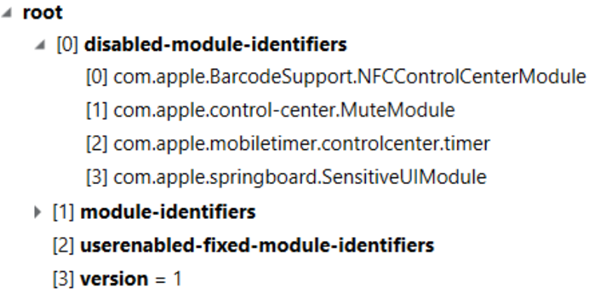
Recall that we are looking for the item that was disabled in position 3. We have a series of “disabled” module identifiers, and we have a value which Axiom has presented to us as item [3]… so it must be that one… mustn’t it?
Sadly, it isn’t.
This reinforces a point that forensic practitioners need to keep front of mind… We need to understand the data underneath the tools. The numbering here is added by Axiom, it is not interpreting these from the Plist file, it is just some additional guidance to help us in viewing the content.
If someone without the benefit of assistance from Axiom counts the entries starting from 1… then the answer would be come.apple.mobiletimer.controlcenter.timer… which it is!
That’s a lot of Hiking

I have to admit I did spend some time looking at information in KnowledgeC, the healthdb_secure.sqlite database and other such databases, looking for information that might cover elevation, including checking to see how big Apple considers a flight of stairs to be (“A flight of stairs is counted as approximately 10 feet (3 Meters) of elevation gain (approximately 16 steps)” for anyone wondering).
I was struggling to work out how this could be linked to “total” elevation.
After being confused for a while, I remembered that there were some skiing pictures on the phone, and thought that maybe this related to the elevation of some of the mountains etc. So I started reviewing some of the photos.
Doing that, I found one particular photo which seemed to give me the answer – a photograph of a sign indicating various mountains and their elevation at the summit – IMG_0028.HEIC:

If we add up all the values, we get the “total” elevation = 71159. This is the flag that we are looking for.
Week 4
The (final) week of challenges are up until Monday, so if you find yourself with some spare time over the weekend, having a play with those is a great way to pass the time – https://www.hexordia.com/spring2024-weekly-ctf-challenge.
Thanks for reading – keep an eye out next week, for my writeup for the final week of the challenge.


One thought on “Hexordia CTF – Week 3”